List Navigation, Auto-Advance, and Shuffle
When you open a song from one of your lists, a navigation bar appears at the top of the screen.

From left to right:
- Current list title
Click on the list title to quickly view the full song list. (On a phone, you may just see a icon here.)
- Auto-Advance button
Toggle this on to automatically move to the next song after playback ends. You’ll also see the option to enable Auto-Play (see below).
- Shuffle button
Click to randomize the song order. Every song in the list plays exactly once before the list reshuffles, so you won’t hear repeats until you’ve been through the whole list. A great way to mix up your practice routine!
- Position indicator
Shows you where you are on the list, e.g. the 7th song out of 15 total. When shuffling, this shows you where you are in the shuffled list.
- Previous/next song buttons
Use these arrow buttons to move through the list song by song. On a computer, you can hover over a button to preview the next/previous song title.
Auto-Advance
Toggle Auto-Advance on to automatically load the next song after playback ends. Click the toggle to open the Auto-Advance menu, where you can turn on Auto-Play — which starts playing the next song automatically, with a configurable delay between songs.
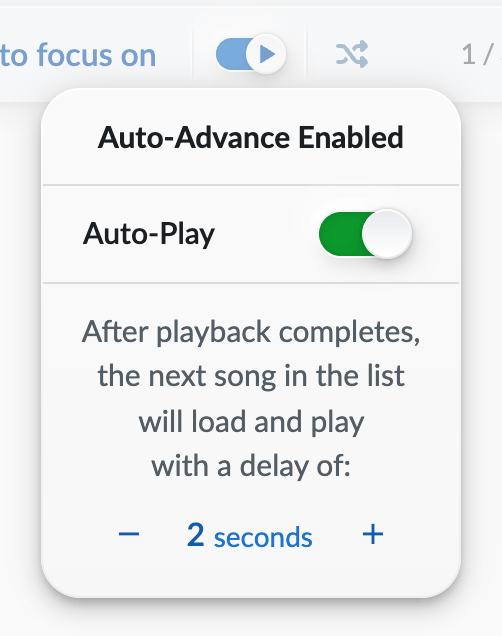
With Auto-Advance on but Auto-Play off, the next song loads and waits for you to press play. With both on, the whole list plays through hands-free — great for jam sessions or background practice.