Full-Screen Mode
Full-screen mode hides the playback controls so the chart gets the whole screen, which is handy at a performance, a jam, or anywhere else you just want to reference the chart. Playback isn’t available in full-screen mode; it’s made for reading, so leave it whenever you want to hear the backing track.
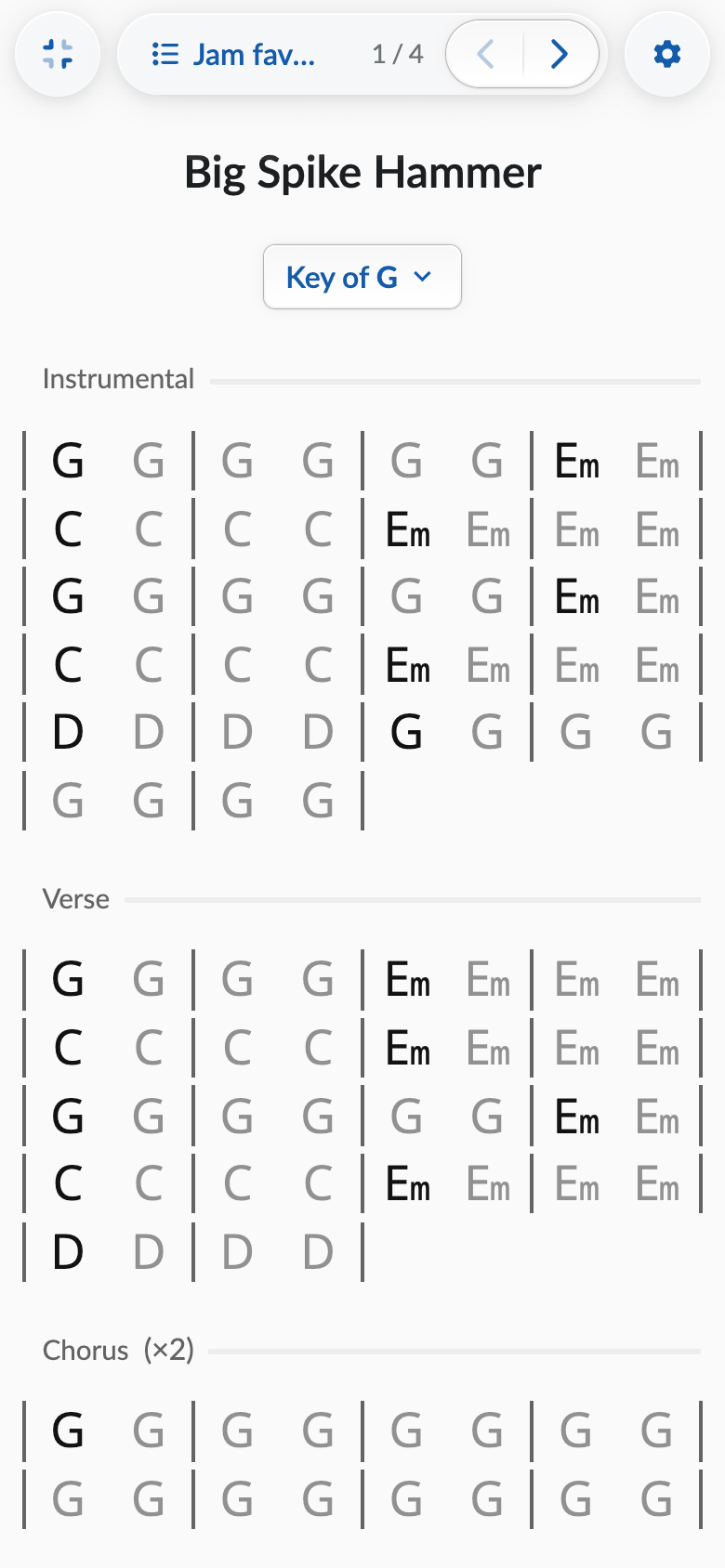
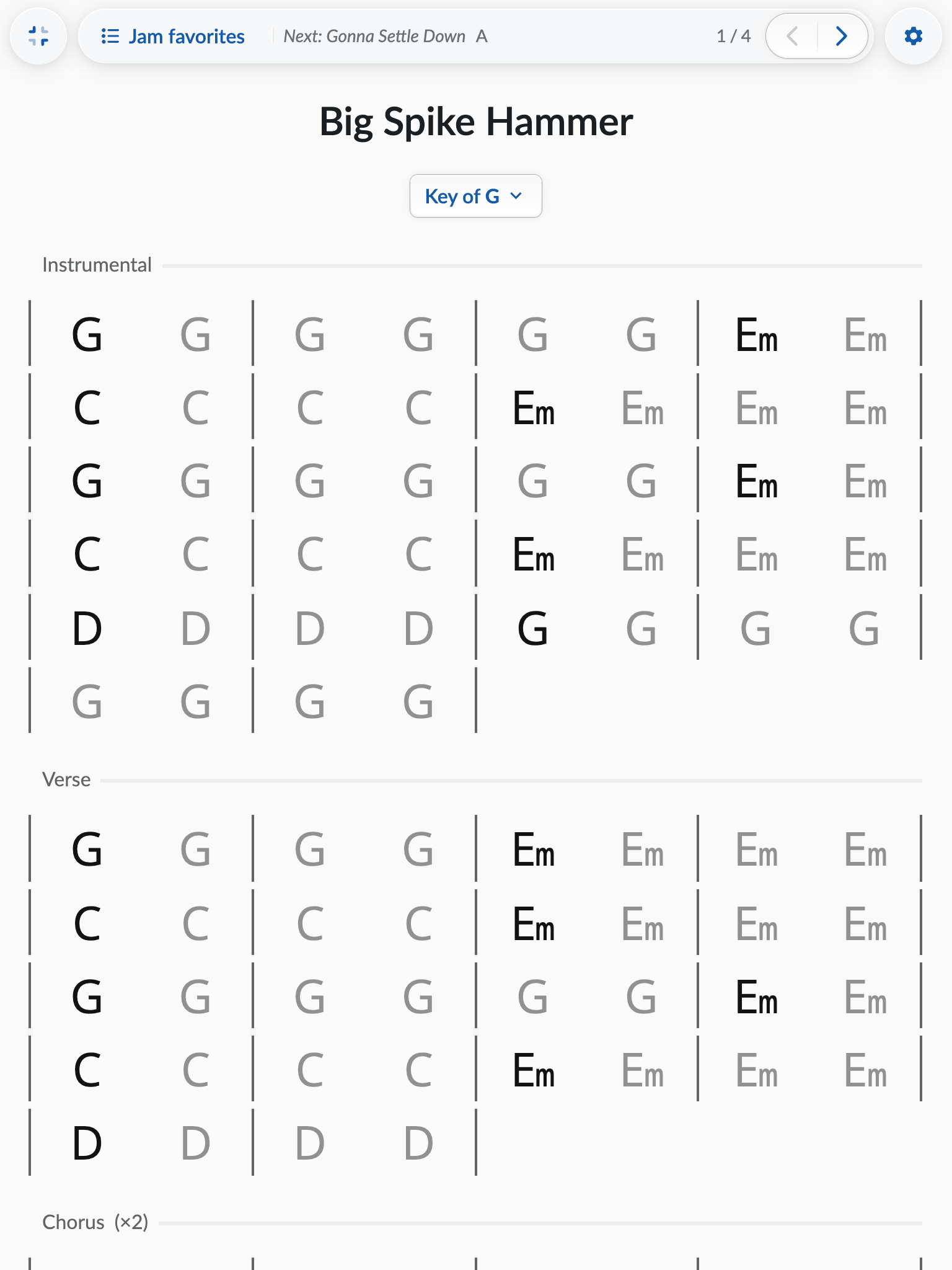
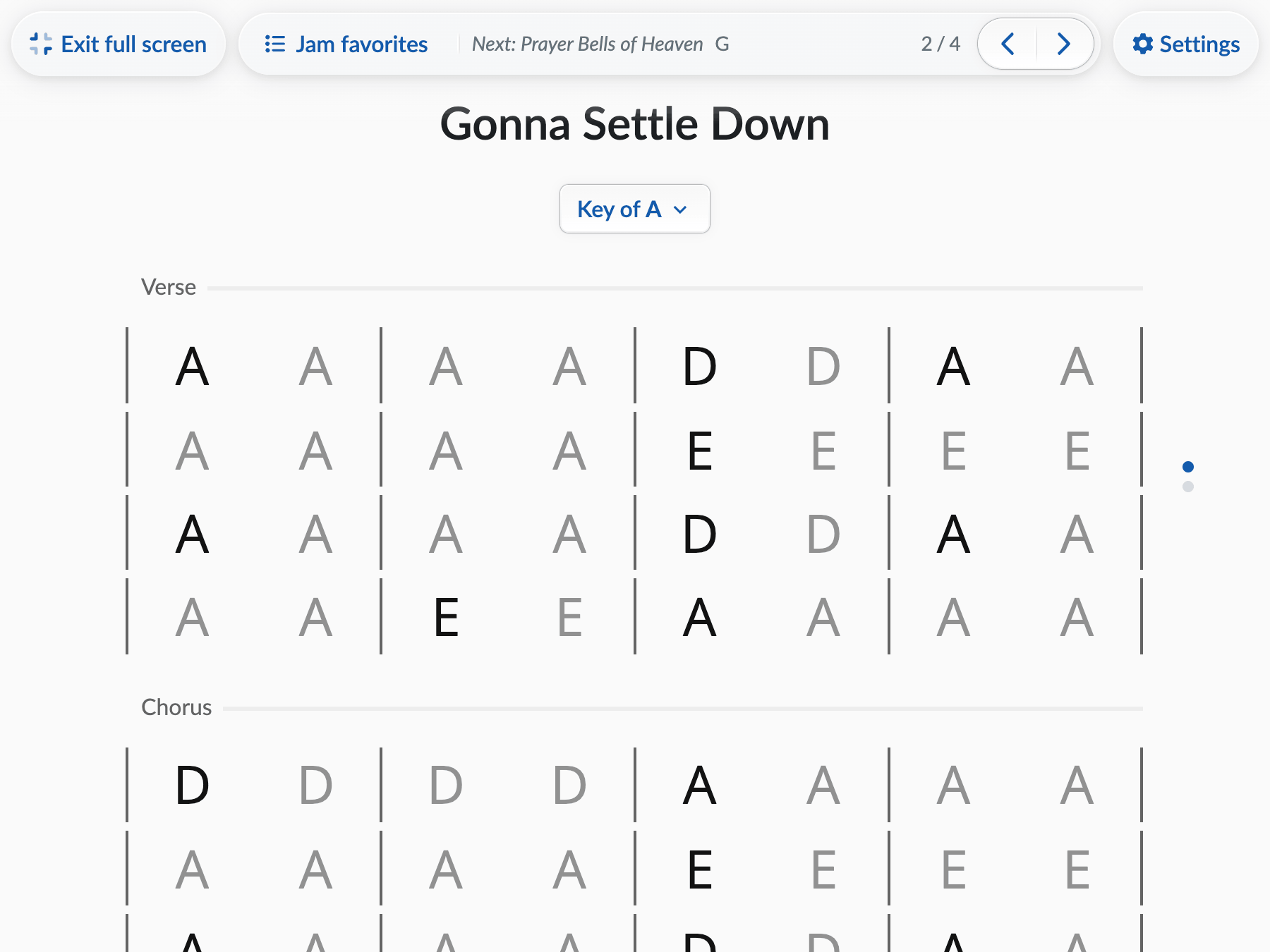
Entering full-screen mode
You can enter full-screen mode on a touchscreen by pinching out with two fingers. Pinching in brings you back to playback mode:
These gestures can be changed in the Gestures settings.
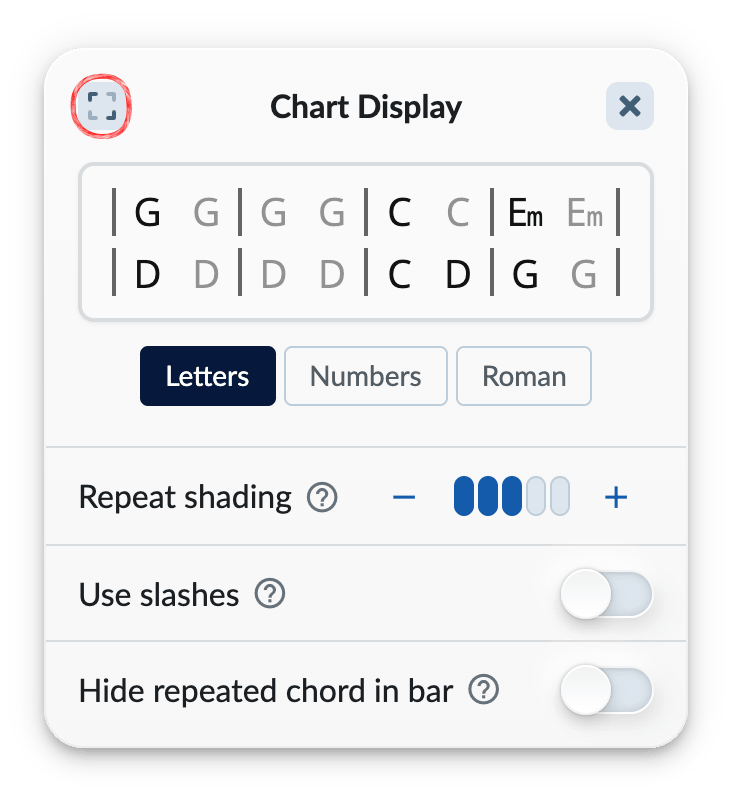
You can also click in the top corner of the Chart Display menu, or press F (unless that key has been customized).
To leave full-screen mode, do one of the following:
- Click in the top-left corner.
- Press Esc.
- Do the reverse of the gesture you entered with (by default, pinch in).
Switching between songs in a list
When you open a song from one of your lists, the list navigation stays at the top of the screen, so you can move to the previous or next song without leaving full-screen mode. You can also swipe left with one finger for the next song or right for the previous one, or press ← or →.
Turning pages in full-screen mode
In full-screen mode, you can tap the bottom or top of the screen to scroll by pages. This will scroll a little less than a screenful, so you can keep your place. You can still tap and drag to scroll the chart freely as needed.
On a keyboard or page turner:
| Key | Action |
|---|---|
| PgDn / spacebar / ↓ | Next page |
| PgUp / Shift+ spacebar / ↑ | Previous page |
| ← / → | Previous or next song |
| F / Esc | Leave full-screen mode |
You can change these keys like any other shortcut.
When there’s room beside the chart, a column on the right shows where you are in the song. On a touchscreen, touch and hold it, then drag, to move through the whole song quickly.