How to record/download backing tracks to MP3
Strum Machine allows you to record its output to an MP3 file. This is useful if you want to have an MP3 version of a backing track for bringing into a DAW (audio recording software), for example.
If you simply want to have access to your backing tracks without an internet connection, there’s no need to download MP3s because Strum Machine can be used offline. Learn how.
Limitations of the backing track recorder
-
It is only possible to record the output of Strum Machine. Your microphone is not recorded.
-
The backing track recorder is not available in the mobile apps – you need to use Strum Machine in a web browser to download MP3s.
-
Some users have reported timing glitches in the exported MP3 with Safari.
- If you notice this, we recommend switching to Chrome, Firefox, Edge, or another browser.
How to use the backing track recorder
First, you’ll need to enable this opt-in feature, which is disabled by default. Open Strum Machine in your web browser (not the mobile app, which doesn’t support this feature), then go to Settings (top-left menu), then “Experiments”, and enable “Backing track recorder”.
Once enabled, using it is simple:
-
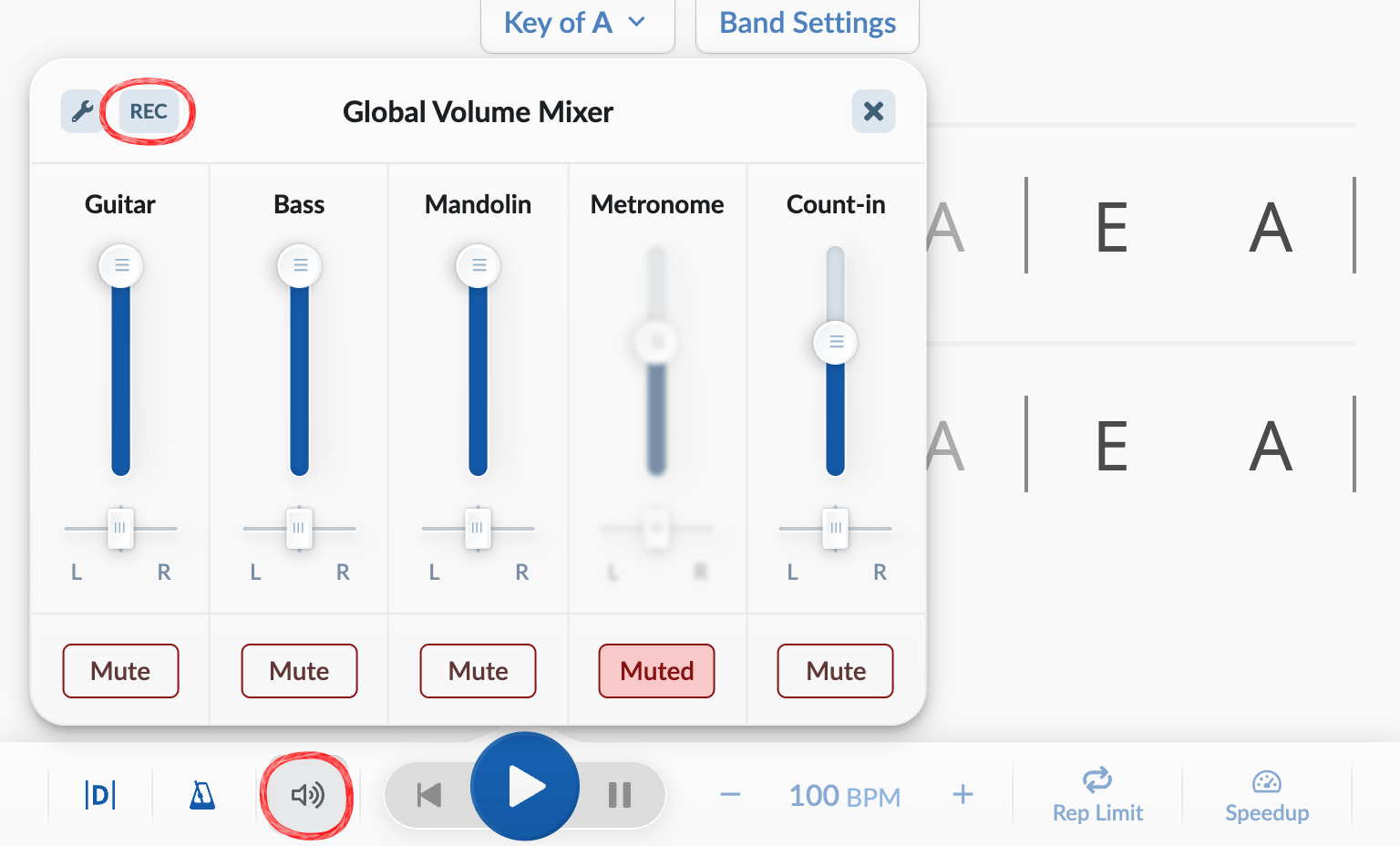
On any song page, open the Global Volume Mixer in the playback bar by clicking , then click the “REC” button in the top-left corner of the mixer:
-
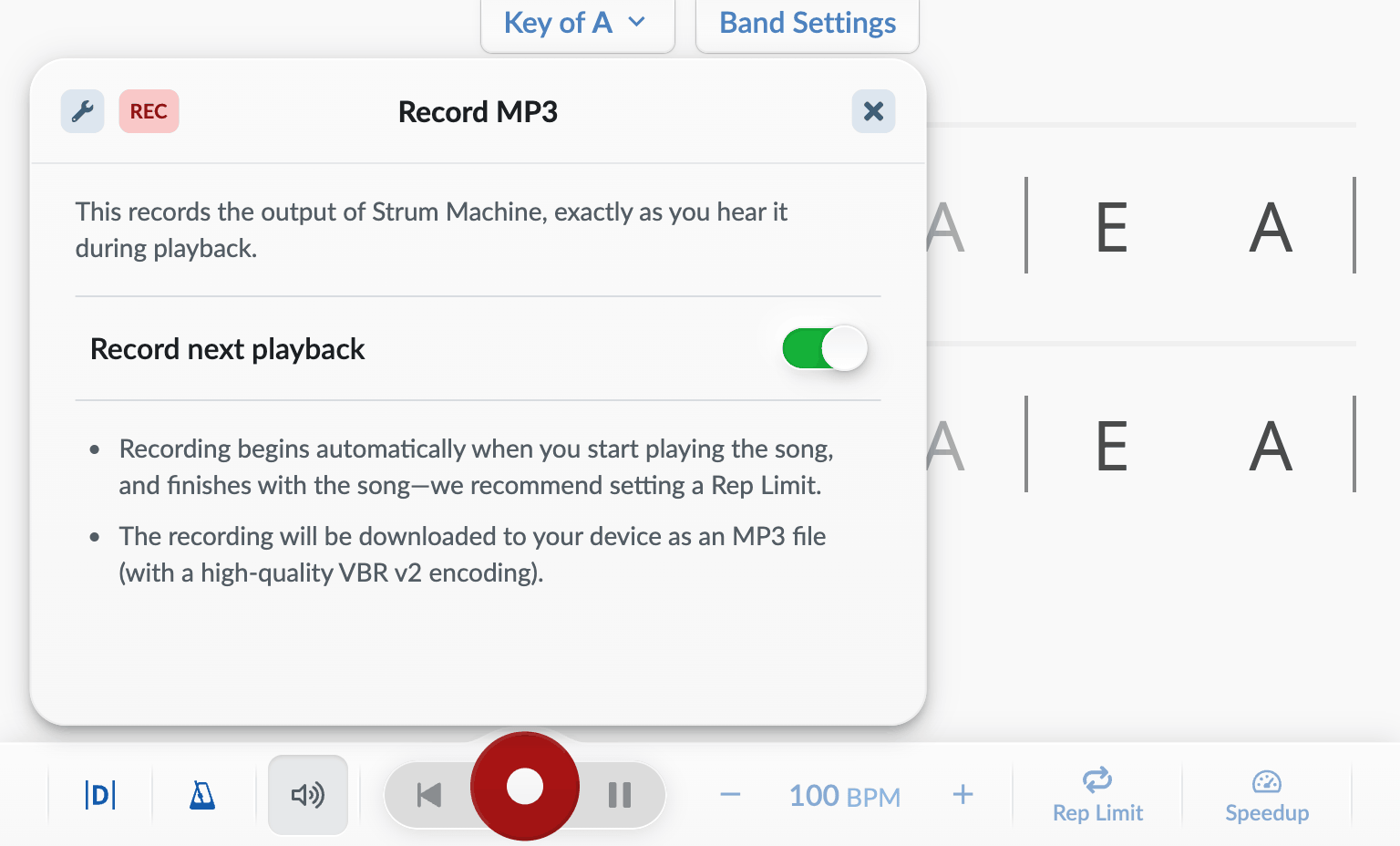
Recording is armed automatically when you open the “Record MP3” panel: the “Record next playback” switch turns on and the play button becomes a red record button.
-
Set Rep Limit to whatever you like (optional but recommended), then hit the record button and let the song play and end.
-
A few seconds after the song ends, an MP3 recording of the backing track will be downloaded.
Where do the downloaded files go?
The download location is determined by the web browser’s settings. Most likely this means MP3s will end up in your computer’s Downloads folder.
If you would like to be prompted for a download location each time, you can change your browser settings.
-
For Chrome, you’d want to open your settings, then “Show advanced settings…”, then scroll down to “Downloads” and check “Ask where to save each file before downloading”.
-
For Firefox, you’d want to go to Preferences > General > Downloads > Always ask me where to save files.
-
For Safari, the download location is set under Preferences > General > File download location.