Audio/Mix Settings
Opening the Audio/Mixer Settings Menu
Click on the Audio/Mixer menu button in the playback bar:

If your app or browser window is narrow and the quick-settings menu buttons aren’t visible on the playback bar, open the top-right and click .
Tap on the Audio/Mixer menu button in the playback bar:

If your screen is narrow and the quick-settings menu buttons aren’t visible on the playback bar, go to menu → in the top-right corner.
Tap on the button in the top-right corner, then tap on :
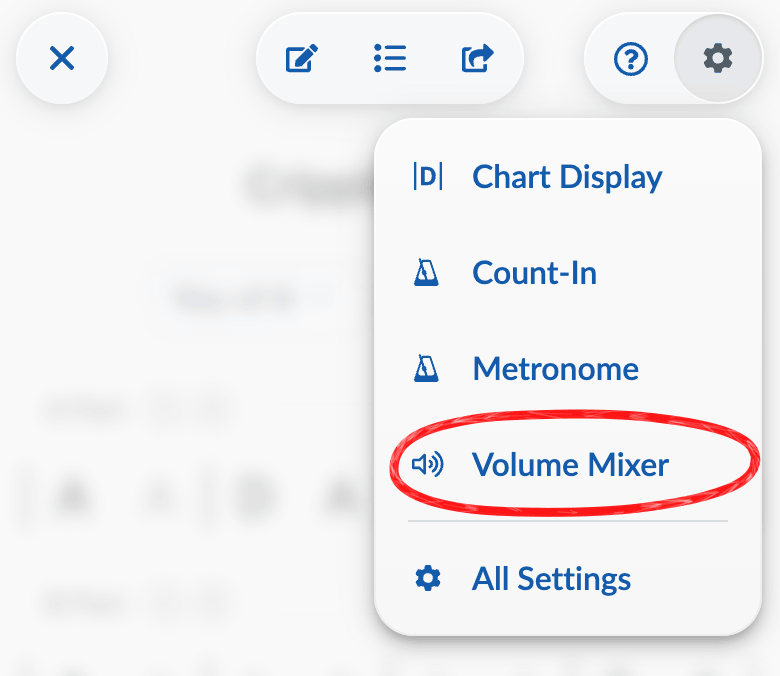
To change the volume of an instrument for all songs, just open the Global Audio Mixer in the playback bar by clicking . On smaller screens, the Audio Mixer can be found in the top right menu with the icon.
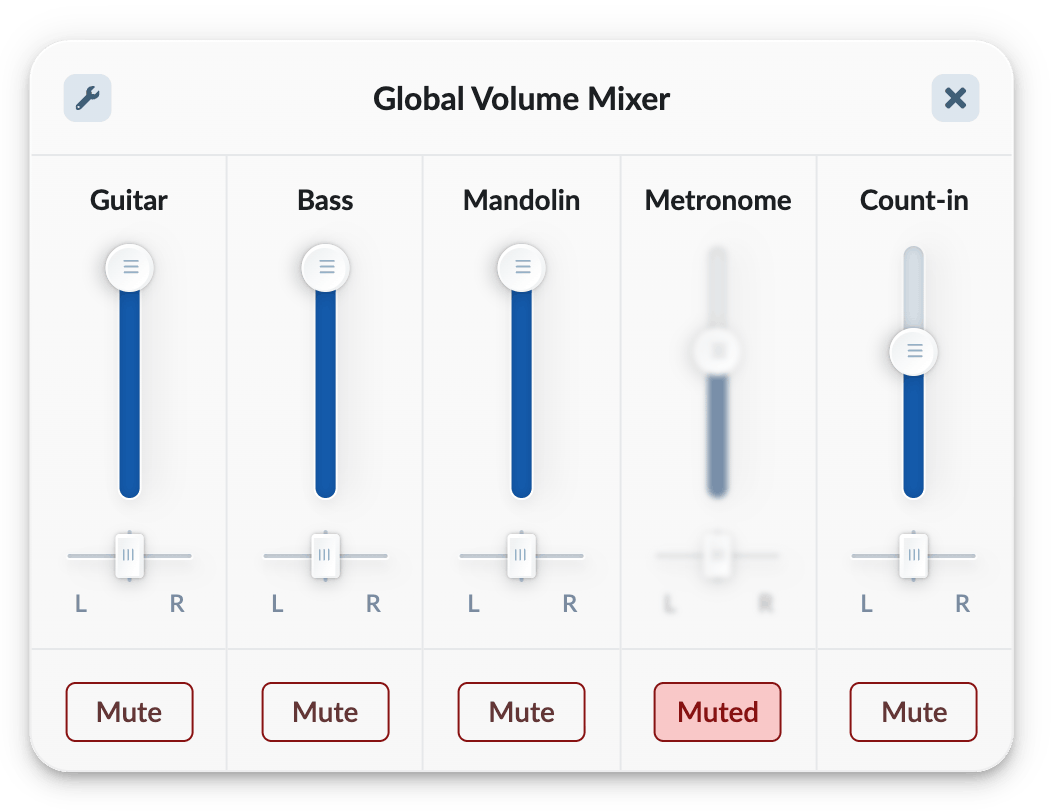
These global volume (and pan) settings are used for all songs/medleys, unless overridden by a particular song (see below). The “Mute” button mutes the instrument across all songs/medleys (regardless of any song-specific overrides) until unmuted.
You can also adjust these settings in the App Settings menu.
Output Volume & Pitch
In the top left corner of this settings modal, you will see a that navigates you to some more niche settings. Click on this button and you will find additional volume settings:
-
Reduce output volume: We recommend that you leave this at 100% and use the volume control on your device or speaker to adjust the overall volume of Strum Machine. Only reduce this volume setting if you need to balance the volume level with other apps, such as when sharing your audio over Zoom, etc.
-
Adjust pitch: You can use this to change the pitch/tuning of Strum Machine’s output. This can be useful, for example, when referencing a source recording that is not tuned to A = 440Hz. Just remember to change it back when you’re done!