Deleting a band preset
You cannot delete built-in presets, but you can delete any preset you create (i.e. any preset in Your Presets). Here’s how:
-
Open the Band Settings menu on a song that uses the preset you want to delete. If no song uses it, pick a song in the same time signature as the preset, since Your Presets only lists presets for the current song’s time signature. Avoid a song with its own Custom Band: selecting the preset replaces that song’s band settings, and its Custom Band can’t be restored once the preset is deleted.
-
If the preset isn’t already shown at the top of the menu, go into Your Presets, select it, then click Back to return to the start of the Band Settings menu.
-
Click the three-dots menu next to the preset name and choose Delete preset:
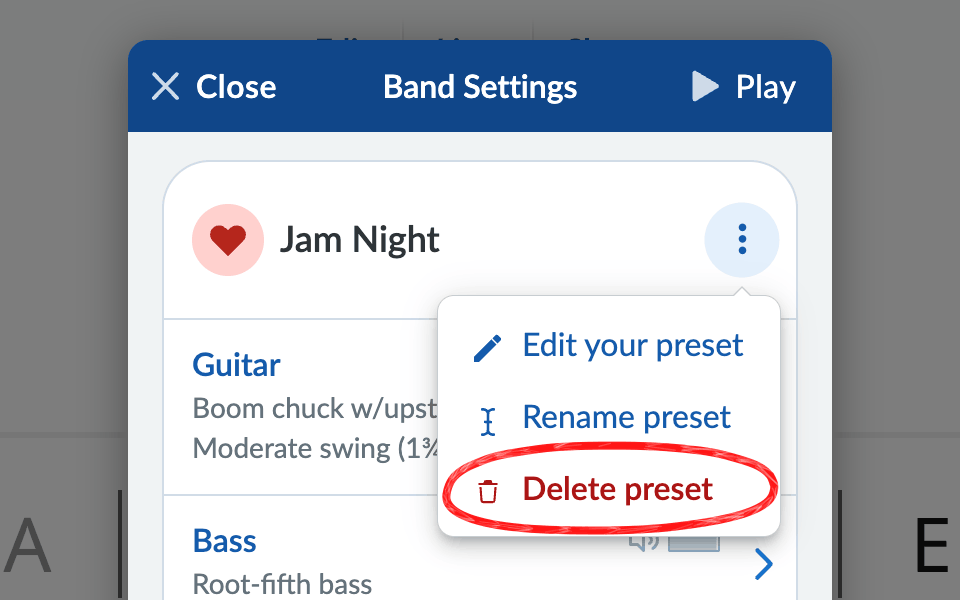
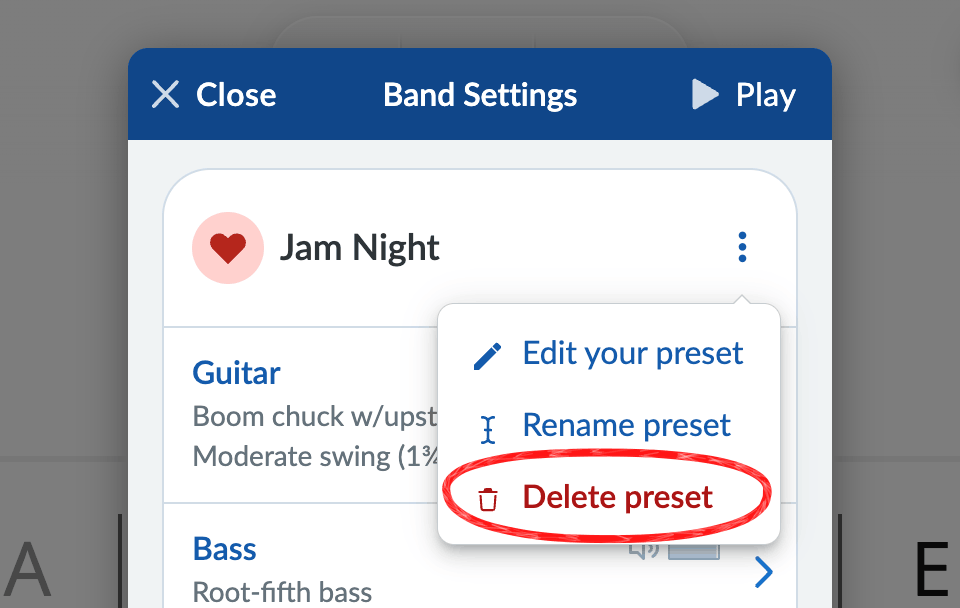
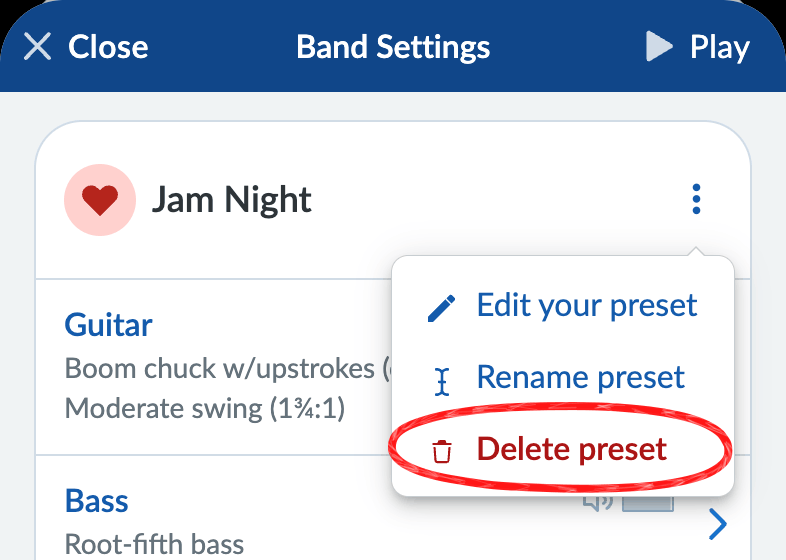
- Strum Machine asks you to confirm, and shows how many of your songs use the preset. Click Delete Preset to delete it:
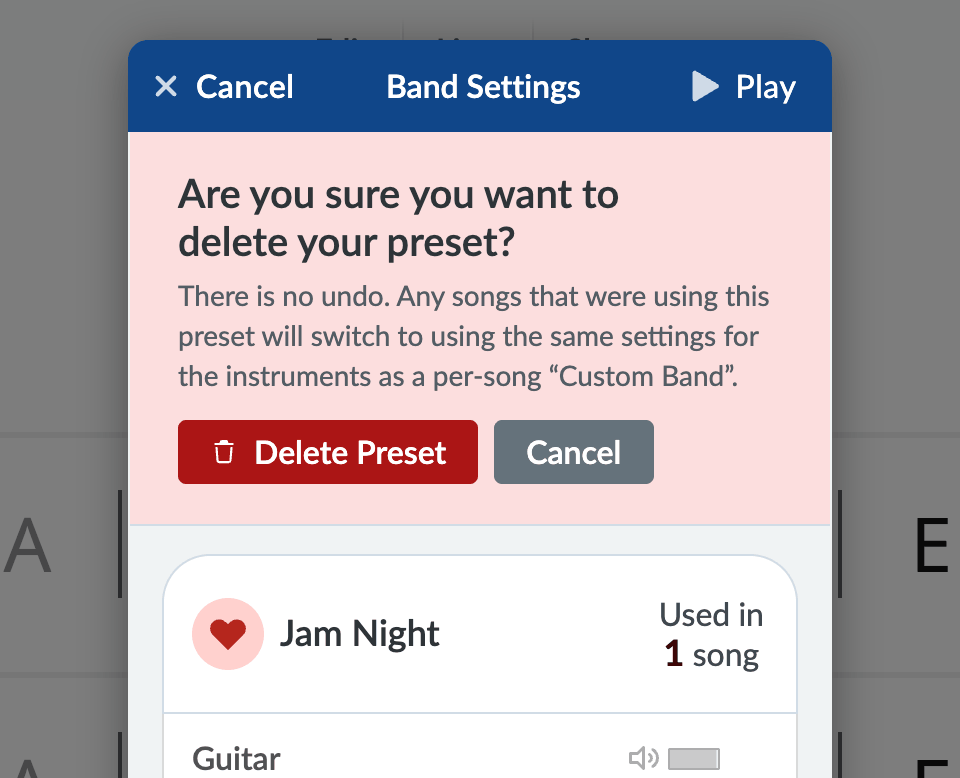
There is no undo. Once deleted, a preset is gone from Your Presets for good. If you change your mind, you’ll need to save a new preset with the same settings.
Songs that were using the preset normally switch to a “Custom Band” with the preset’s instrument settings, saved with that song. If you want one of those songs to use a different preset, just choose a new one.
The Default Band can’t be deleted, but if you’ve changed the default band settings, you can go back to the original by choosing Reset default band from the three-dots menu next to Default Band.